
Automate CRM Email Preference Management
Email Preference Management allows your contacts to choose what type of emails they receive, instead of unsubscribing from everything.
This guide walks you through setting up preference-based unsubscribes inside Automate CRM — step by step.
What Is Email Preference Management in Automate CRM?
Email Preference Management lets you create email subscription categories (called Preference Types) and assign them to campaigns.
This means contacts can:
Unsubscribe from specific email types
Stay subscribed to content they care about
Avoid unnecessary global unsubscribes
The result? Better engagement, better deliverability, and better compliance.
Step 1: Open Preference Management Settings
All preference settings are managed at the location level inside Automate CRM.
How to access it:
Log in to your Automate CRM dashboard
Select the correct Location
Navigate to Settings → Preferences

Step 2: Create Email Preference Types
Preference types define the categories of emails you send.
Common examples include:
Newsletters
Promotions & Special Offers
Product Updates
Events & Announcements
How to create a preference type:
Click Create Subscription Type
Enter a Preference Name (e.g. “Automate CRM Newsletter”)
Add a short description explaining the content
Click Save

✅ Repeat this step for every email category you plan to send.
Step 3: Assign Preferences to Email Campaigns
Creating preference types is only half the setup. Each email campaign must be assigned to a preference type.
How to assign a preference:
Go to Marketing → Emails
Open an existing campaign or create a new one
Click Send or Schedule
Select the relevant Preference Type
Save or send your email

⚠️ Important:
Emails without a preference type cannot correctly apply unsubscribe rules.
Step 4: How Automate CRM Applies Unsubscribes
Once preferences are assigned:
Contacts unsubscribed from that category will not receive the email
Contacts remain subscribed to other categories
Contacts are not removed from lists or workflows
This protects your email list while respecting contact choices.
Step 5: Manage Preferences for Individual Contacts
Admins can manually review or update a contact’s preferences if required.
How to manage contact preferences:
Open Contacts
Select a contact
Go to the DND (Do Not Disturb) tab
Click Subscription Status
Toggle each preference:
Subscribed
Unsubscribed


⚠️ Only re-subscribe contacts if you have valid consent.
Step 6: What Your Contacts See
When preference management is enabled, unsubscribe links include a Manage Preferences option.
Contacts can:
Unsubscribe from specific categories
Update their email preferences
Fully unsubscribe if they choose

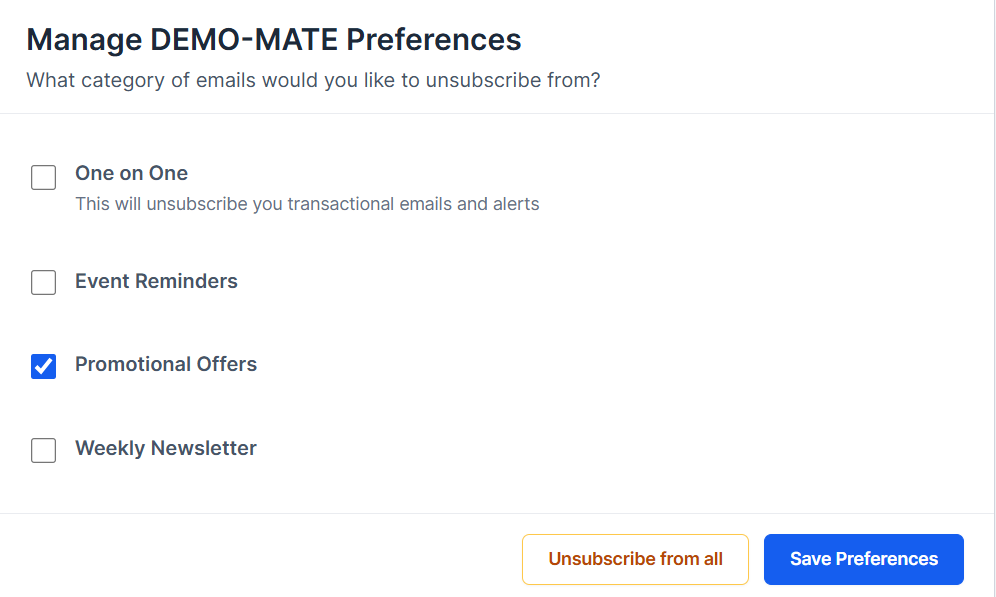
This improves trust and reduces full list unsubscribes.
Preference Unsubscribe vs Full Unsubscribe

Best Practices for Automate CRM Users
✔ Use clear, descriptive preference names
✔ Avoid too many categories
✔ Assign a preference to every email campaign
✔ Monitor unsubscribe rates by category
✔ Combine preferences with tags and segmentation
Final Thoughts
Email Preference Management in Automate CRM helps you send:
More relevant emails
Fewer unwanted messages
Fully compliant campaigns