
How to Customise the Contact Detail Page in Automate CRM
Customising the Contact Detail Page in Automate CRM allows you to tailor how contact records appear for different users. You can create custom views, organise panels, control visibility, and assign layouts based on roles like Sales, Support, or Admin.
Note: This feature currently needs to be enabled in Labs before it becomes available.
What is Customising the Contact Detail Page?
This feature allows admins to control how contact records are displayed inside Automate CRM.
You can:
Create multiple layout views
Choose which fields and modules appear
Organise panels and sections
Assign specific views to different users
Only admins can create and manage these views.
Key Benefits
Role-based layouts – Show different information to different users
Improved organisation – Structure data in a way that matches your workflow
Reduced clutter – Hide unnecessary fields and modules
Better efficiency – Surface the most important tools and data
More control – Manage access and prevent accidental actions
Views and Access Management
Views allow you to customise the Contact Detail Page for different users.
Key points:
You can create up to 5 views per account
Each user can only be assigned to one view
Users not assigned to a custom view will see the default view
Only admins can create, edit, and assign views
You can assign and manage users within each view or review all assignments in one place.
Contact Detail Page Layout Structure
Each view is made up of four main areas:
Contact Card – Displays key contact information at the top
Left Panel – Contains fields, custom fields, and folders
Centre Panel – Main workspace for modules
Right Panel – Additional modules and tools
Important: The Conversations module is fixed in the centre panel and cannot be moved.
Step-by-Step: Customise the Contact Detail Page
Step 1: Navigate to the Customise Contact Detail View
Go to Contacts
Click Smart Lists
Click the three dots menu
Select Settings
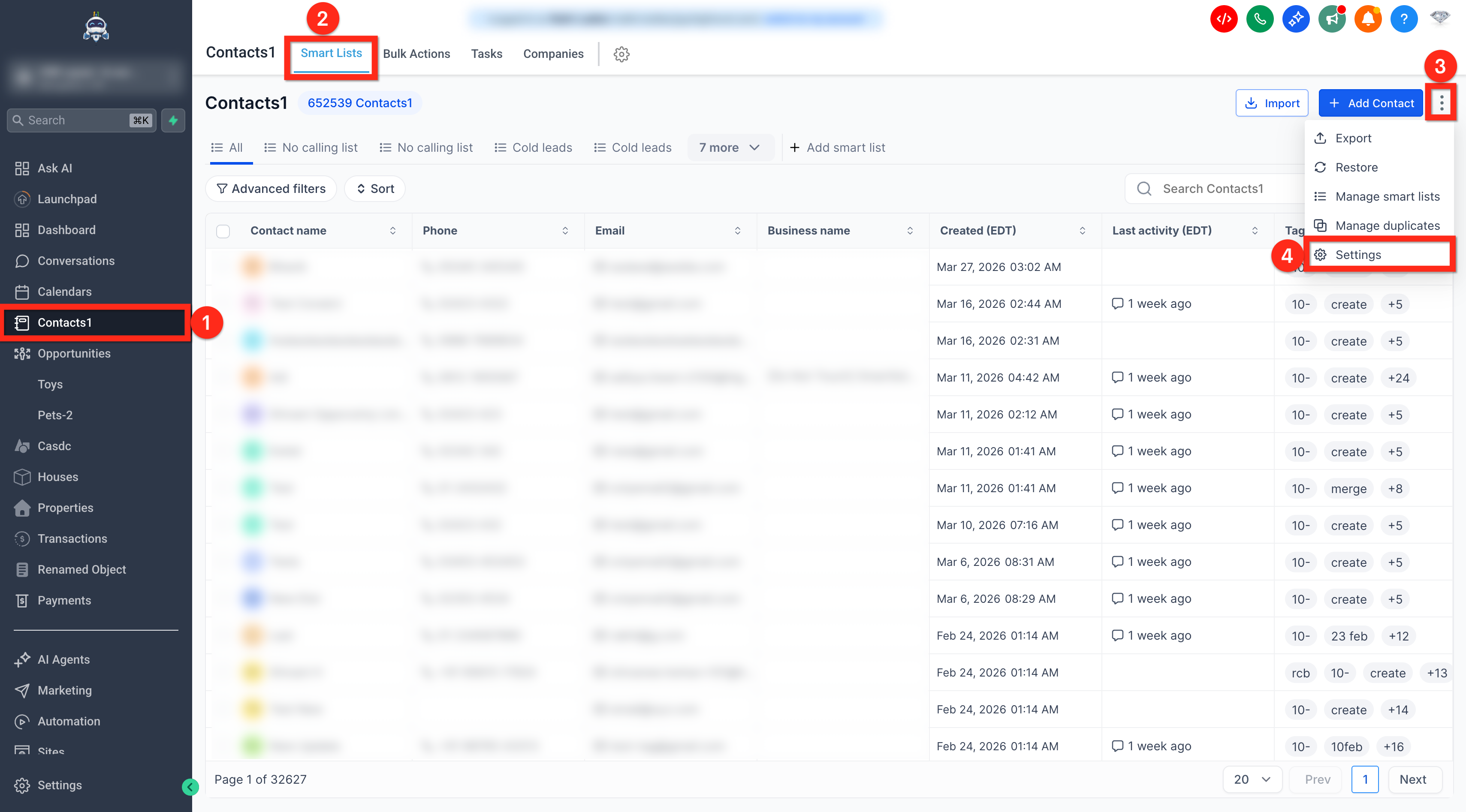
Open Customise Contact Detail View
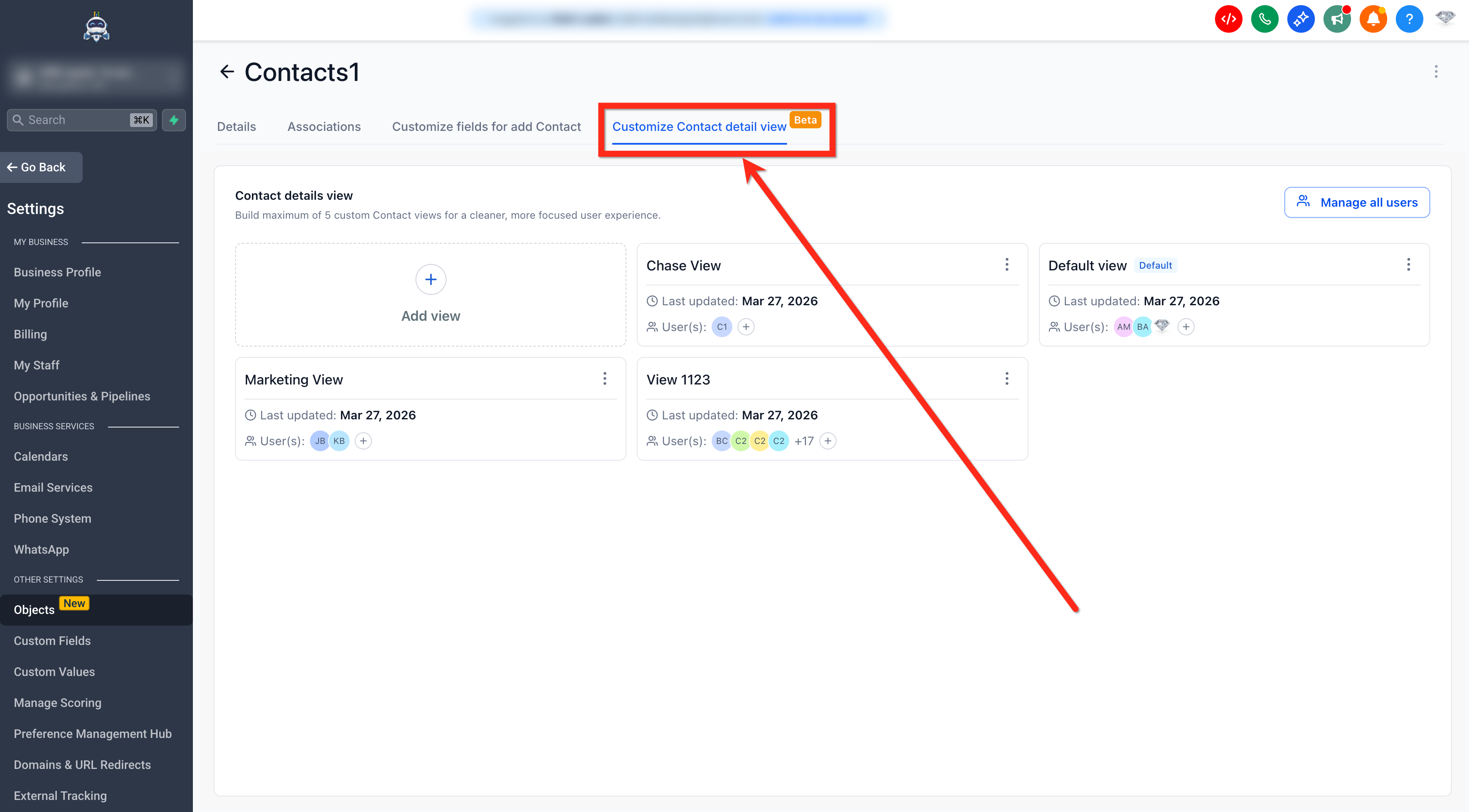
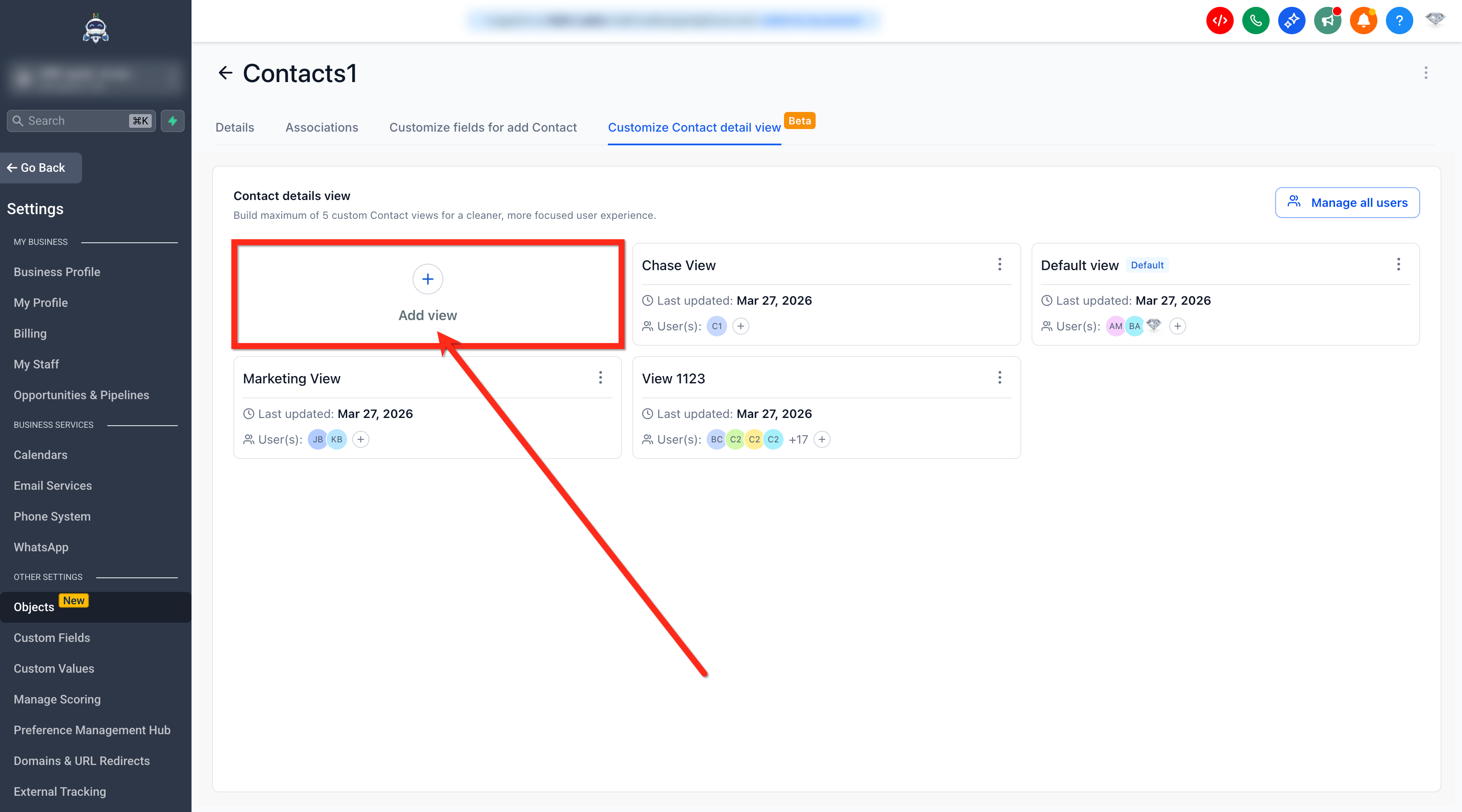
Step 2: Create and Manage Views
Click + Add View
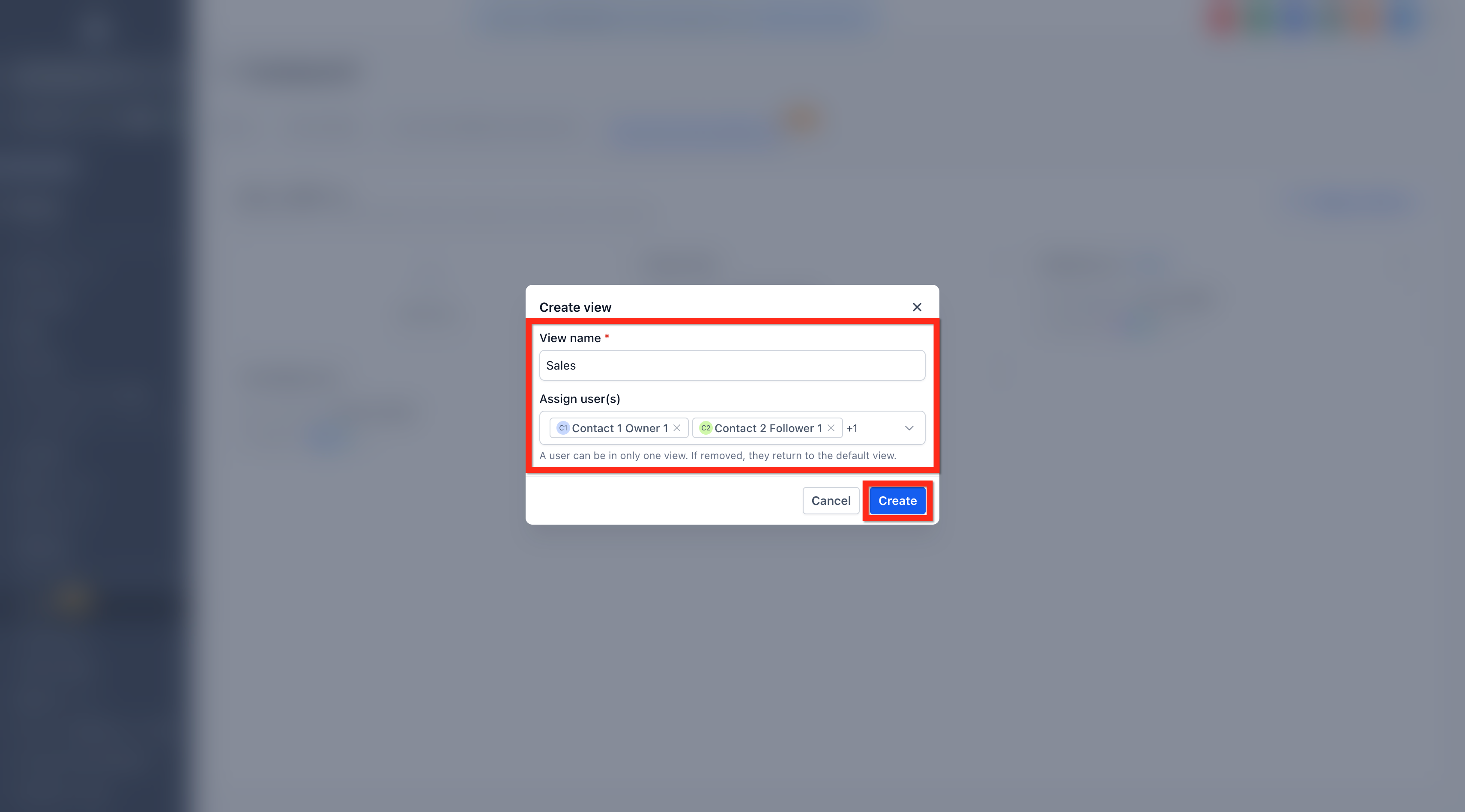
Enter a View Name
Assign User(s) to the view
Click Create
Once created, use the options menu (three dots) to:
Rename the view
Manage users
Duplicate the view
Delete the view
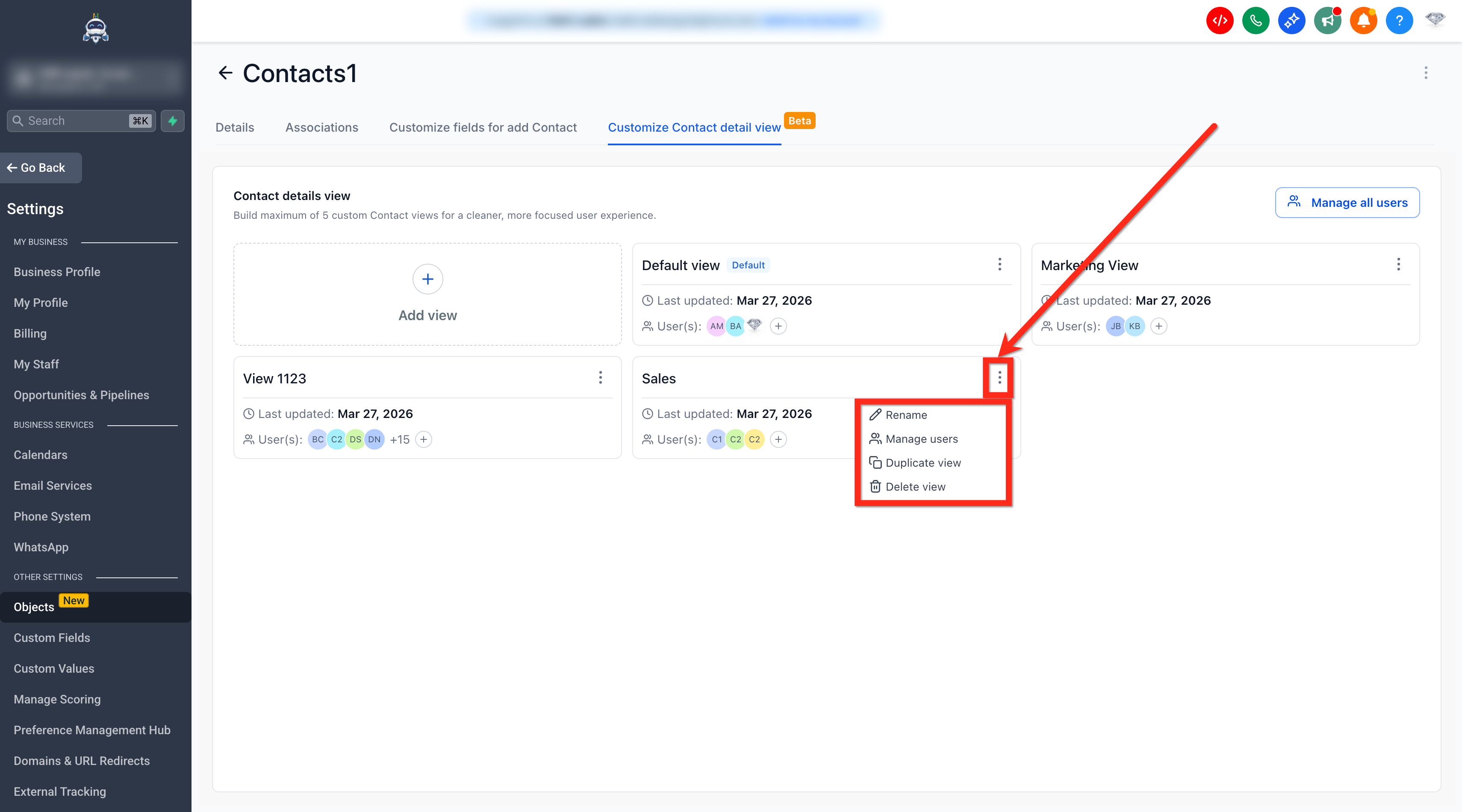
You can also:
Open Manage Users to assign users
Use Manage all users to see all assignments across views
Step 3: Customise the Contact Detail Page Layout
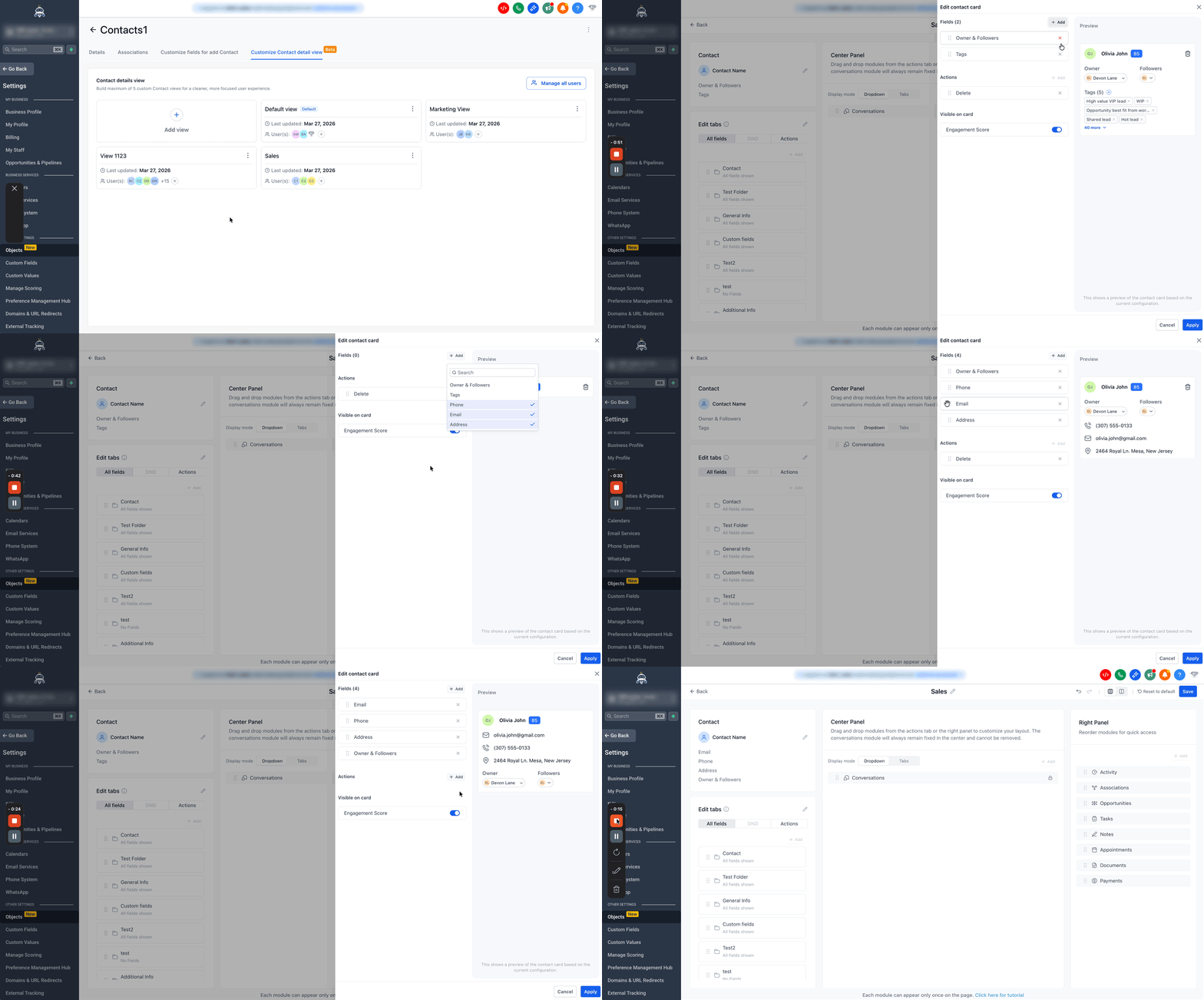
3.1 Customise the Contact Card
The Contact Card appears at the top of the contact record.
You can:
Show or hide key details like phone, email, address
Display owner and followers
Add or remove tags
Reorder items
Important:
Only the primary phone number and primary email can be displayed
You can disable the Delete button to prevent accidental deletions
3.2 Customise the Left Panel
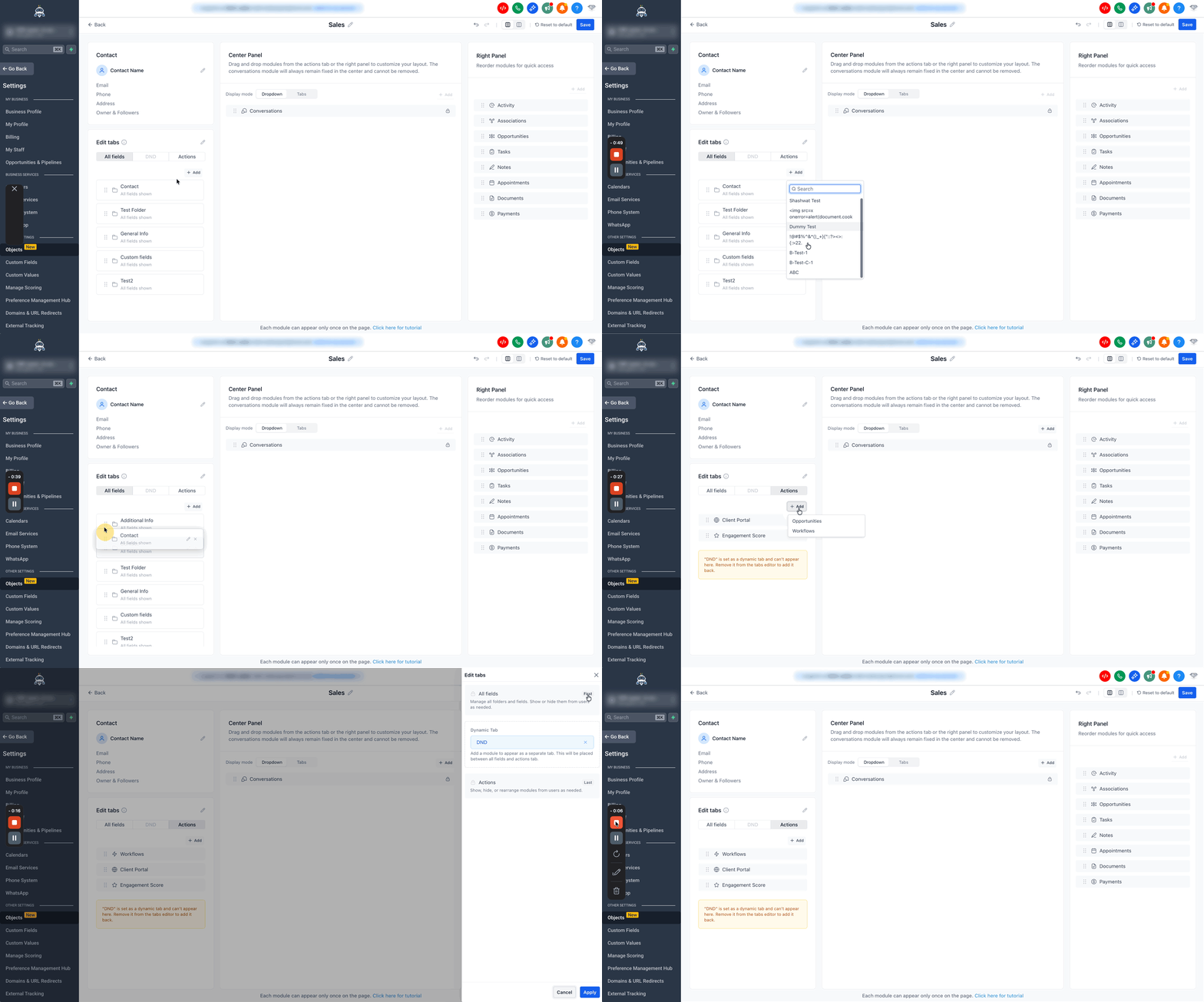
The left panel is used to organise contact fields.
You can:
Rearrange folders and fields
Rename folders
Hide fields you don’t need
Re-add fields using the Add button
See how many fields are currently displayed
3.3 Use the Dynamic Tab
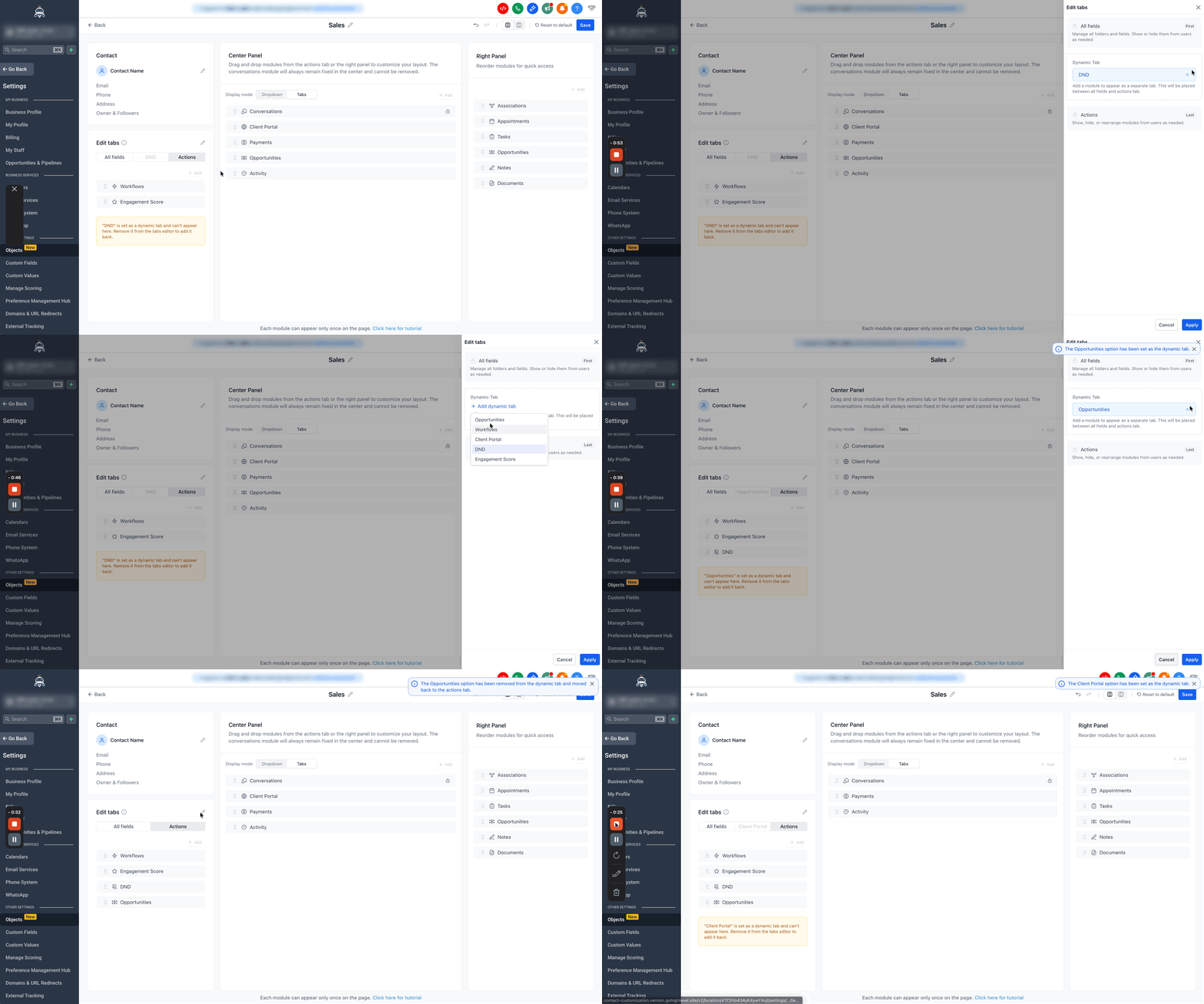
The Dynamic Tab allows you to highlight one key module for quick access.
It appears between All Fields and Actions
You can assign a supported module to it
When added, the module is removed from its original location
This is useful for frequently used features like Opportunities or Client Portals.
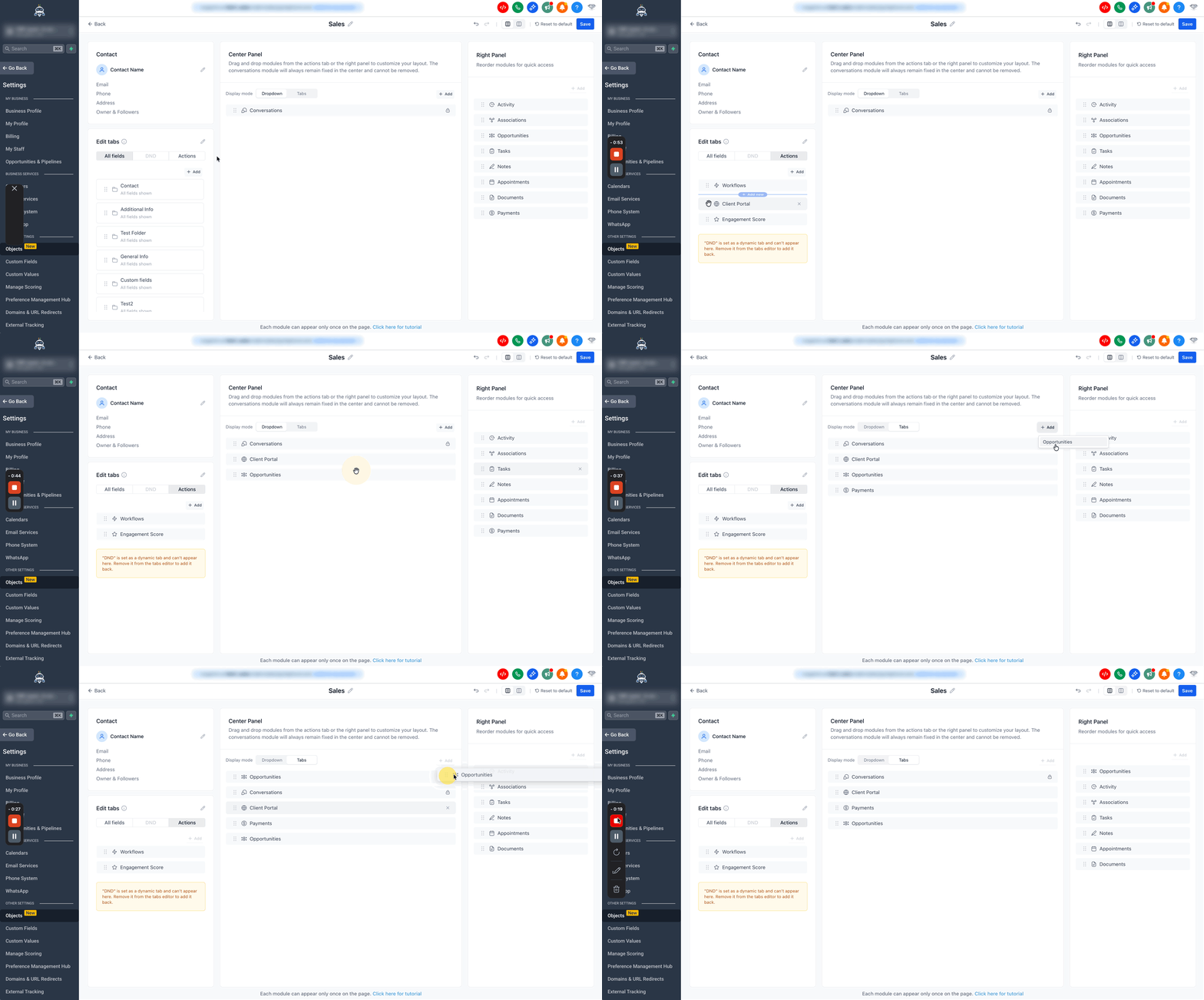
3.4 Customise the Centre Panel
The centre panel is your main working area.
You can:
Drag and drop modules into the centre panel
Move modules from the Actions tab or Right Panel
Important rules:
The Conversations module cannot be moved
Actions modules can go to the centre or stay in the left panel
Actions modules cannot be moved to the right panel
Right panel modules can be moved into the centre panel
Display options:
Tabs View – Modules appear as tabs
Dropdown View – Modules are grouped into a dropdown
3.5 Customise the Right Panel
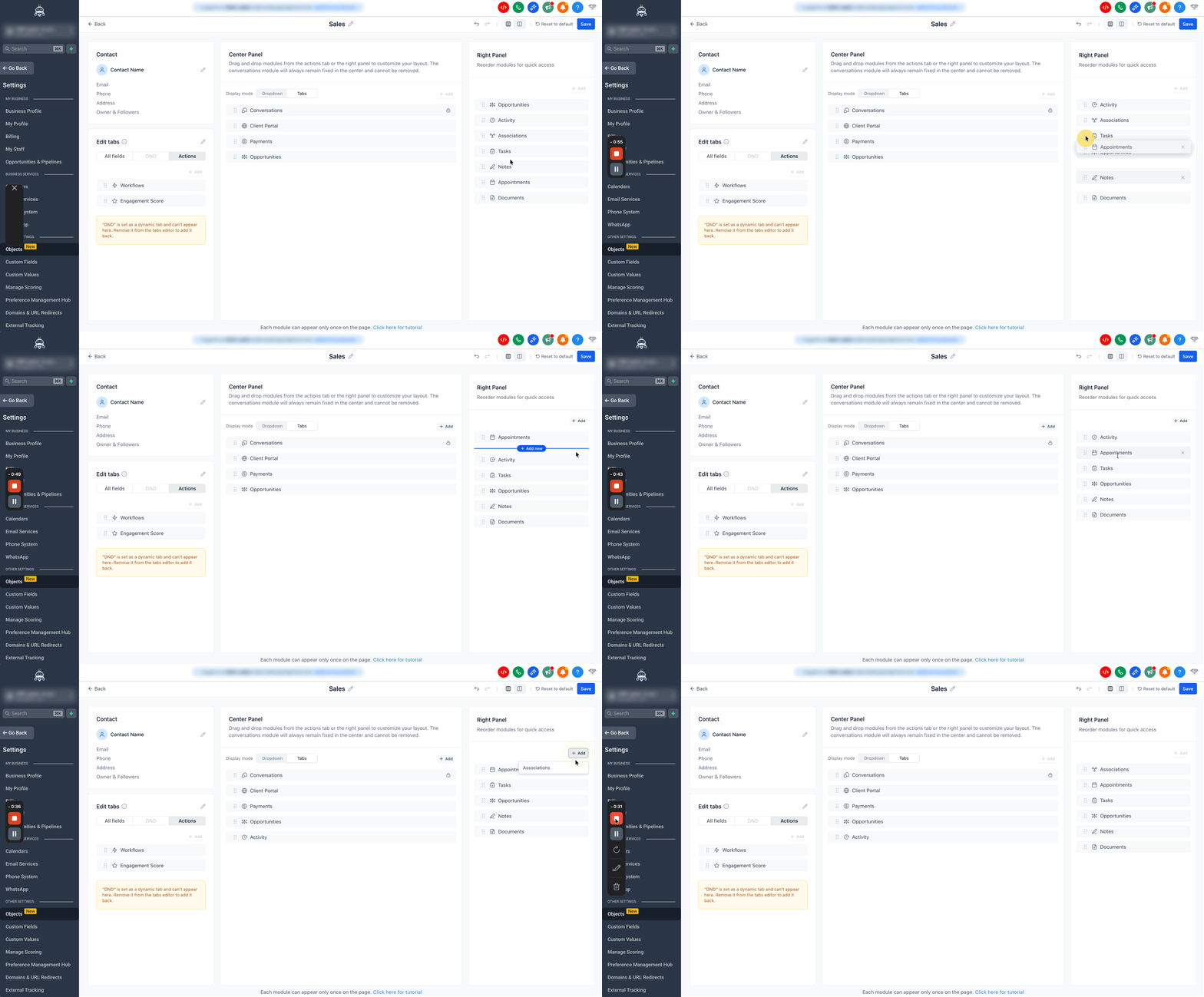
The right panel holds additional modules.
You can:
Reorder modules
Move modules into the centre panel if needed
3.6 Choose a Panel Layout
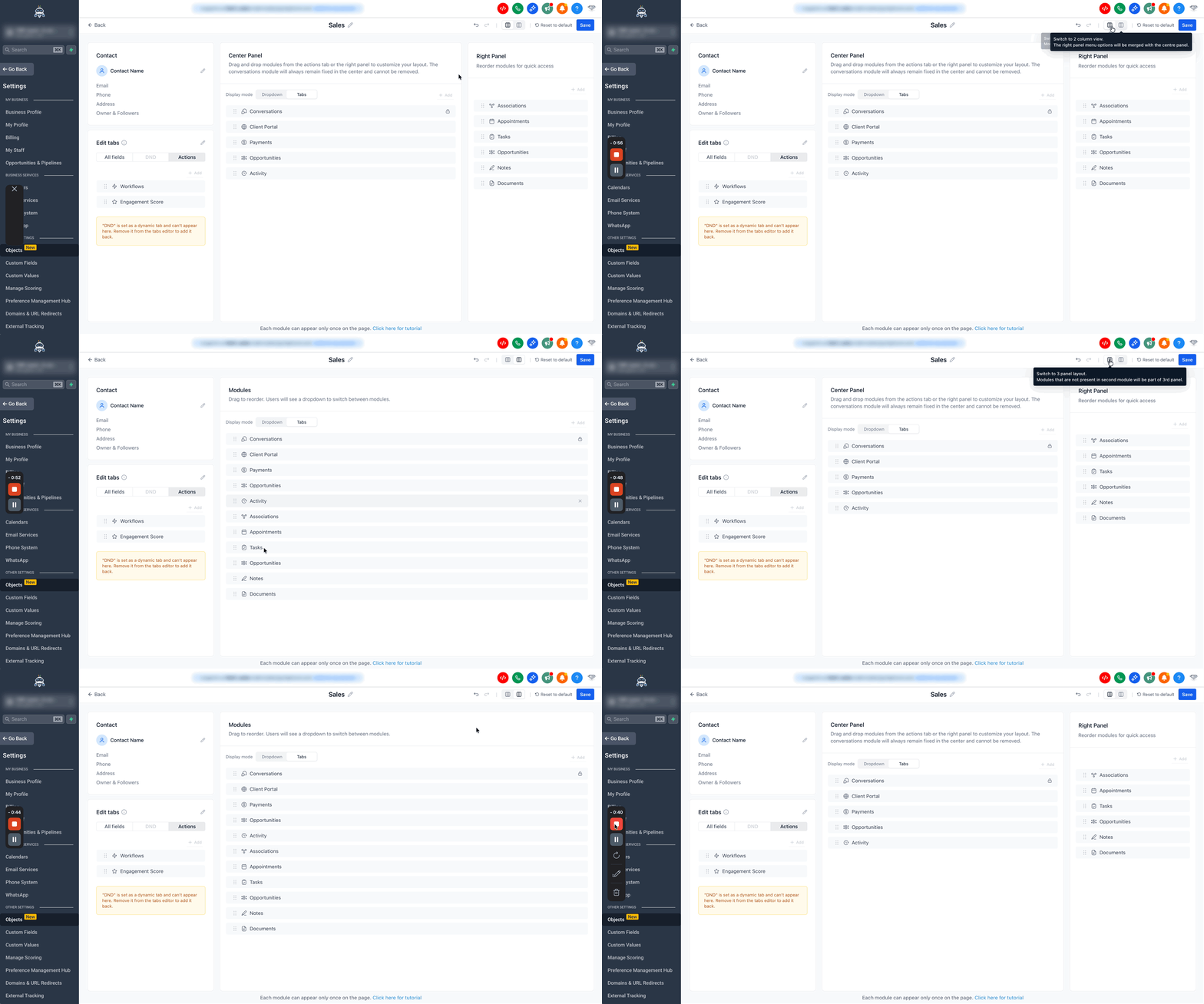
You can choose how panels are displayed:
Three-Panel View (Default)
Left, centre, and right panels are visible
Two-Panel View
Right panel modules are merged into the centre panel
Switching between layouts will preserve your previous setup.
Step 4: Review and Save
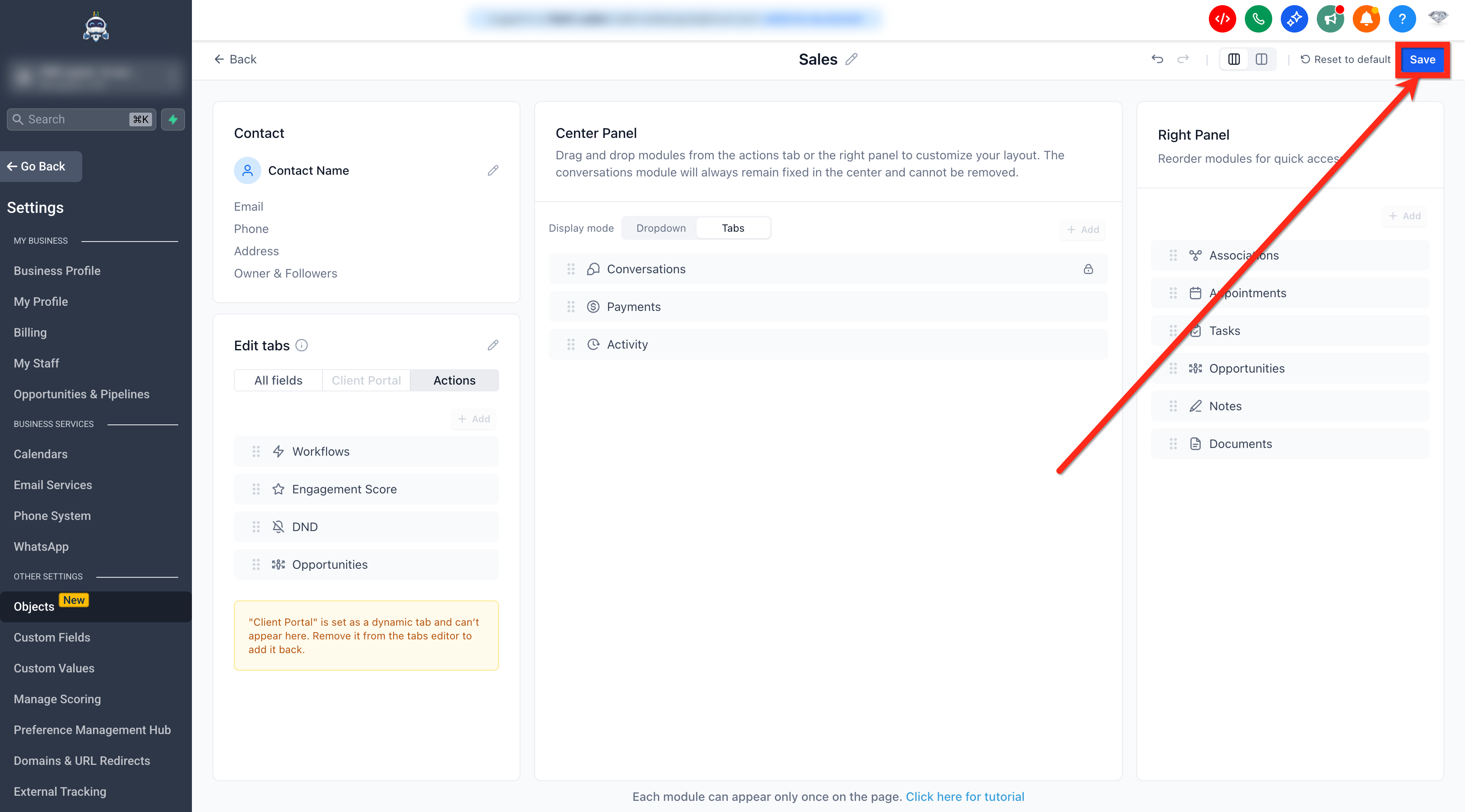
Before finishing:
Review your layout using the preview
Make any final adjustments
Click Save
Best Practices
Create separate views for different teams (Sales, Support, Admin)
Keep the centre panel focused on high-priority tasks
Use the Dynamic Tab for frequently accessed features
Hide unused fields to reduce clutter
Disable delete if data protection is important
FAQs
Who can customise the Contact Detail Page?
Only admins can create and manage views.
How many views can I create?
Up to 5 per account.
Can a user be assigned to multiple views?
No, each user can only be assigned to one view.
Can the Conversations module be moved?
No, it is fixed in the centre panel.
Can Actions be moved to the right panel?
No, Actions can only be in the left or centre panel.
Can I switch between layouts later?
Yes, you can switch between two-panel and three-panel views at any time.
Can hidden fields or modules be restored?
Yes, you can re-add them using the Add option.